Listen to Articles with Natural Text-to-Speech
Listen to any article read aloud in the original language or in your translated language — at the speed that suits you, with the voice you pick.
Text-to-Speech turns any imported article into audio you can listen to while commuting, cooking, or resting your eyes between long study sessions. READA uses your browser's and device's best available voices so the sound quality is natural, not robotic.
Playback works on both the original and the translated text, so you can listen to a French paper in French to practice pronunciation, or in English to absorb it more easily.
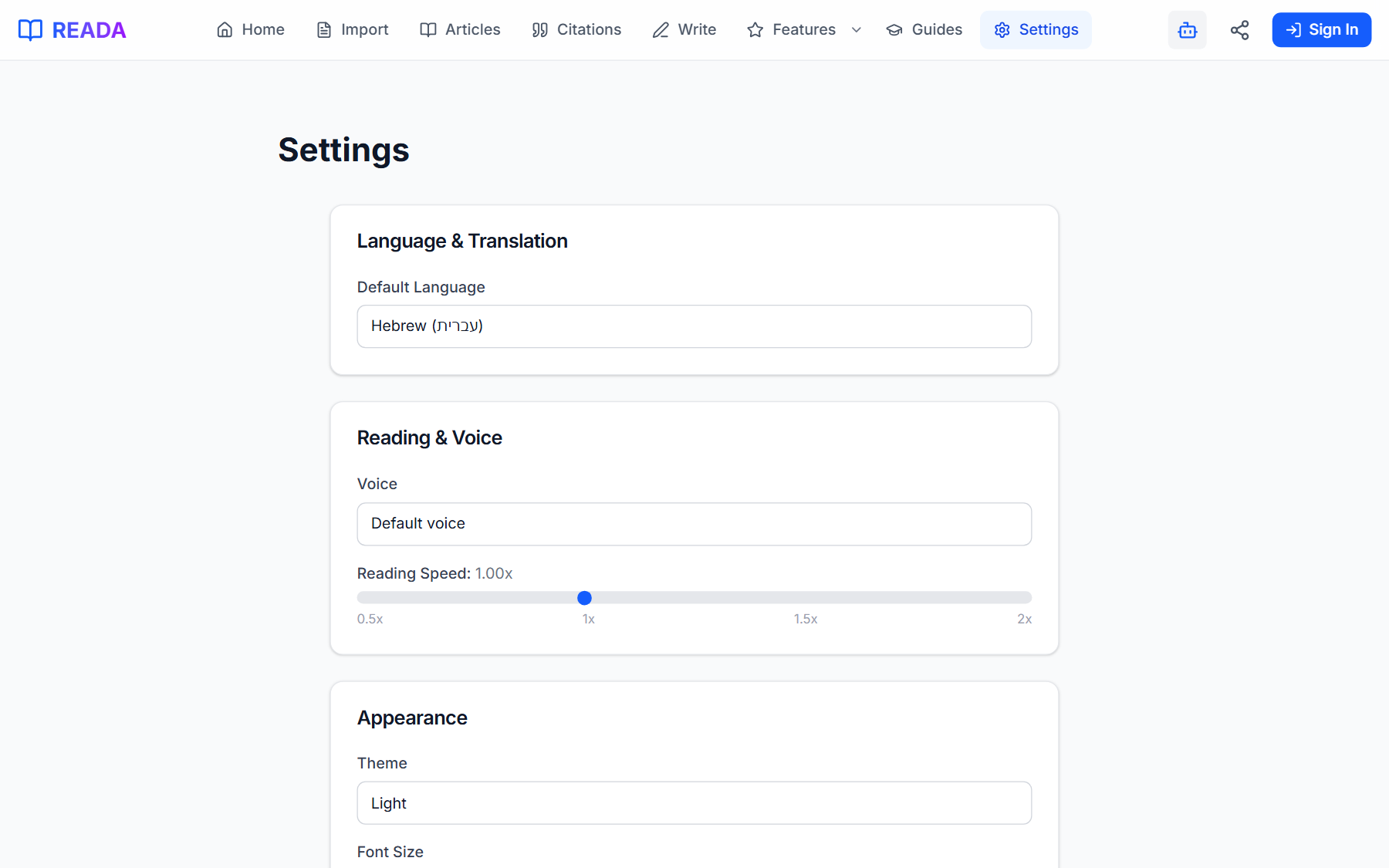
Voice, pitch, and speed are configurable in Settings, and the controls are always visible in the Reader toolbar so you can pause, skip, or change speed without leaving the page.
How it works
- 1
Open an article in the Reader
Pick anything from your library — translated or original.
- 2
Press the Play button
It sits in the Reader toolbar. Playback starts from the current paragraph.
- 3
Adjust speed and voice
Use the inline speed selector for quick changes. For voice selection and default speed, visit Settings → Text-to-Speech.
- 4
Pause, skip, or stop anytime
The controls stay docked while audio plays, so you never lose your place.
Benefits for you
- Listen to articles in 20+ languages — original or translation.
- Adjustable playback speed from slow study to podcast-speed review.
- Multiple voice options depending on language and device.
- Great accessibility feature for dyslexic readers and visually impaired users.
- Pause / resume / skip sentence controls built into the reader.
How people use it
- A commuter finishes today's assigned reading on the bus with headphones on.
- A dyslexic student listens while following the text visually — the best of both modes.
- A language learner checks pronunciation of new vocabulary in context.
Who it's for
- Auditory learners.
- Students with dyslexia or other reading disabilities.
- Busy people who study on the go.
- Language learners practicing pronunciation.
Where it lives in READA
- The Reader has a prominent Play button in the toolbar.
- Voice and speed settings live in Settings → Text-to-Speech.
- Playback controls (pause / resume / stop) stay docked while audio plays.
Frequently asked questions
Which languages can READA read aloud?
20+ languages, depending on the voices your device and browser provide. Most modern platforms include good voices for major languages.
Does TTS work offline?
It uses your device's built-in speech engine, so many voices work offline. Cloud-based voices need a connection.
Can I listen to a translated article?
Yes. Playback works on both the original and the translated text — pick which you want to hear before pressing Play.
Is there a playback-speed limit?
You can slow down for difficult material or speed up to podcast pace. Most voices stay intelligible across that range.
Is it accessible for dyslexic readers?
Yes — listening while following the text is one of the most common use cases and a core accessibility feature.
Related links
Ready to try it?
Jump straight into READA and put Text-to-Speech to work on your next article.