Organize Every Quote You Save in a Searchable Library
All your saved quotes live in a single searchable library. Create folders by topic, course, or project; drag quotes between folders; and attach personal notes to anything.
READA's Citation Library is the home for every excerpt you save. It is a searchable, sortable, foldered archive — part Zotero, part bookmarks bar, part research journal — all built around one question: "where was that quote again?"
Every citation remembers its source article, the paragraph it came from, the date saved, and — if you are translating — both language versions. You can group citations into folders and subfolders by course, topic, paper-in-progress, or however your brain likes to organize things.
Each citation supports a notes field for your own annotations. Notes never leave your device unless you explicitly export.
How it works
- 1
Save your first quote
Highlight a passage inside any article and tap Save. Repeat as you read.
- 2
Open the Citations page
Use the top-menu "Citations" link to see everything you have saved.
- 3
Create folders
Build folders (and subfolders) by course, topic, or paper-in-progress.
- 4
Drag quotes into folders
Organize as you go — drag-and-drop between folders rearranges instantly.
- 5
Attach notes and search
Add a personal note to any citation, and use the search bar to find anything by keyword later.
Benefits for you
- Full-text search across every citation you have ever saved.
- Unlimited folders and subfolders with drag-and-drop organization.
- Per-citation notes for your own annotations.
- Remembers both language versions for bilingual work.
- Preserves source link + paragraph for automatic later referencing.
How people use it
- A thesis writer keeps one folder per chapter and moves quotes as the outline evolves.
- A student preparing a seminar exports a single folder of the ten best quotes.
- A researcher reopens a year-old project and finds every supporting quote instantly.
Who it's for
- Anyone writing a paper, thesis, or dissertation.
- Students juggling multiple courses with separate reading lists.
- Lifelong learners who revisit old sources years later.
Where it lives in READA
- Top-menu link "Citations" opens the library.
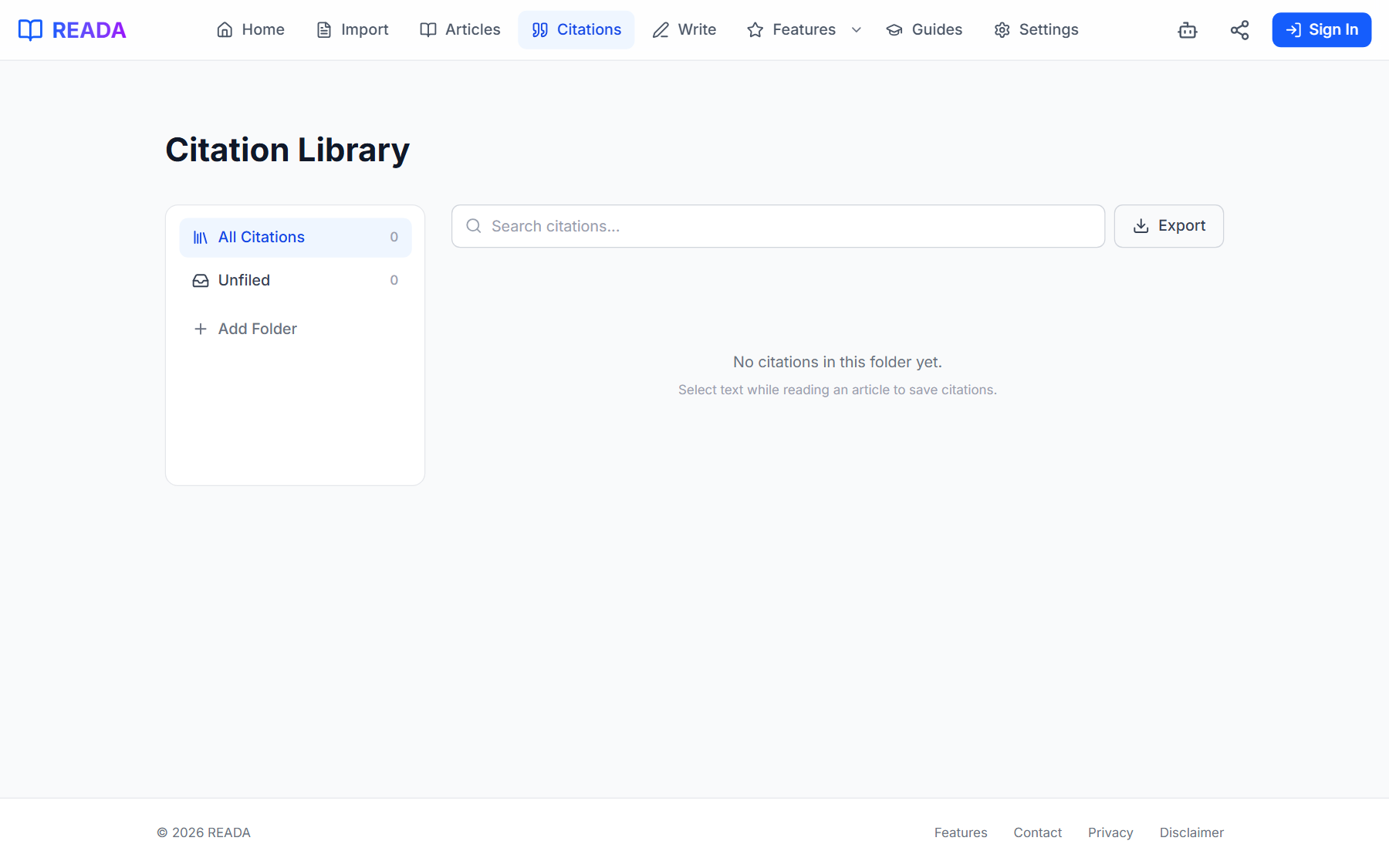
- The library has a folder tree on the left and citations on the right.
- Each citation card shows the quoted text, its source, and a notes editor.
Frequently asked questions
Can I create nested folders?
Yes. Subfolders go as deep as you need — organize per course, per chapter, per research project.
Does search go into the notes too?
Yes. Full-text search covers the quote itself, your notes, and source metadata.
Where is my library stored?
On your device. Your quotes and notes never leave your browser unless you explicitly export.
Can I reorder citations inside a folder?
Yes, via drag-and-drop. Useful when building an outline of quotes for a paper.
Is there a size limit on the library?
Practically, no. READA is built to handle thousands of citations without slowing down.
Related links
Ready to try it?
Jump straight into READA and put Citation Library to work on your next article.