Import Academic Articles from PDFs, URLs, or Plain Text
Bring any academic source into READA — upload a PDF, paste a link, or drop in raw text — and the full article is ready to read, translate, and cite within seconds.
PDF & URL Import is the entry point to everything READA can do. Drop a PDF from your device, paste a link to any article on the open web, or copy raw text directly into the importer — READA runs intelligent content extraction behind the scenes to pull out the clean article body and strip away navigation, ads, cookie banners, and sidebar clutter.
Imported articles are stored locally on your device so you can keep reading, highlighting, and citing even when you are offline or on a flaky connection. Every article keeps its source URL or filename so you always know where a quote originated.
PDFs are processed through a layered extraction pipeline (Azure Document Intelligence as the primary engine, with Mistral OCR as a fallback) so even scanned or image-based papers come out as searchable, selectable text.
How it works
- 1
Open the Import page
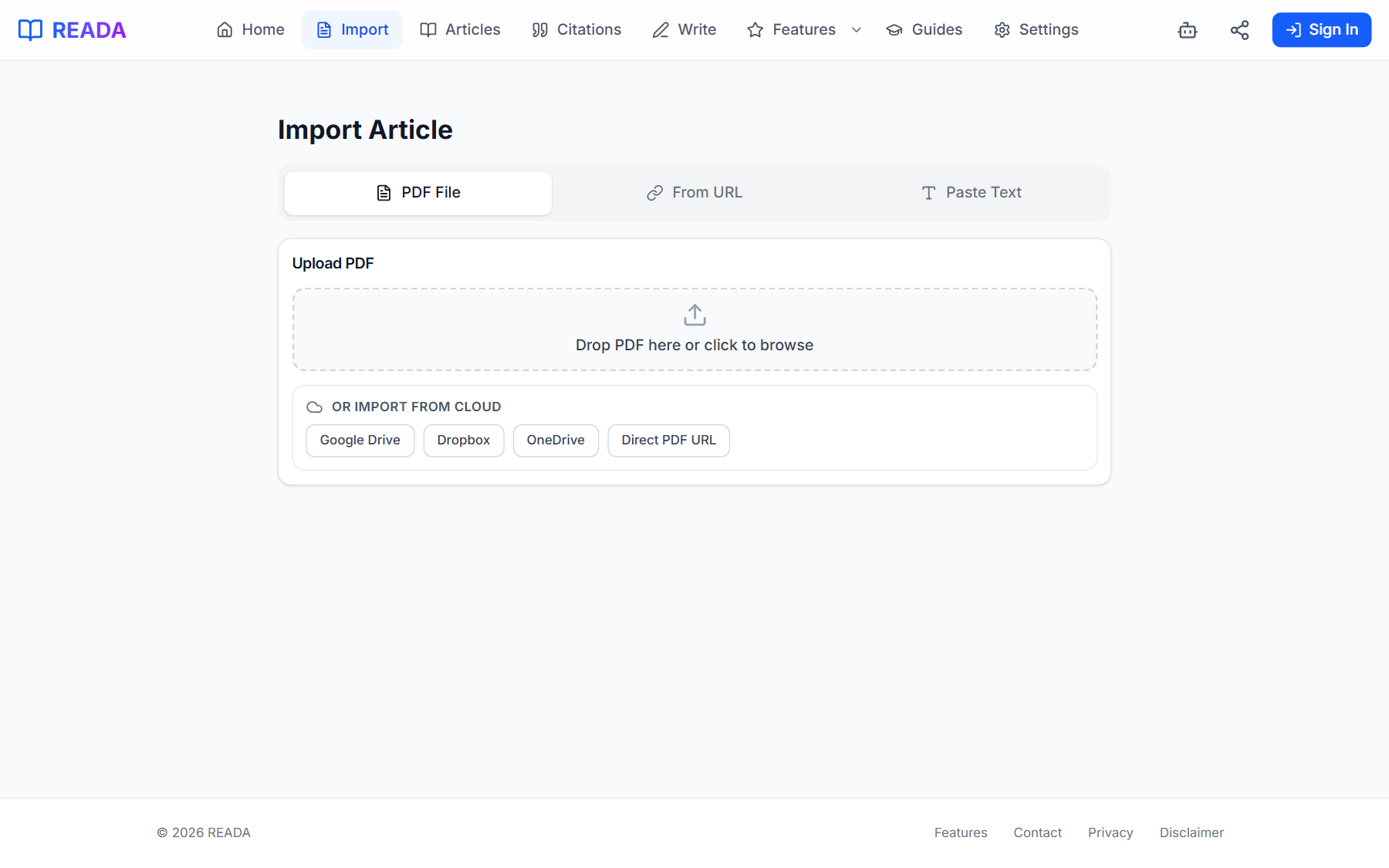
From the top menu, click "Import" to reach the three-tab importer.
- 2
Pick your source
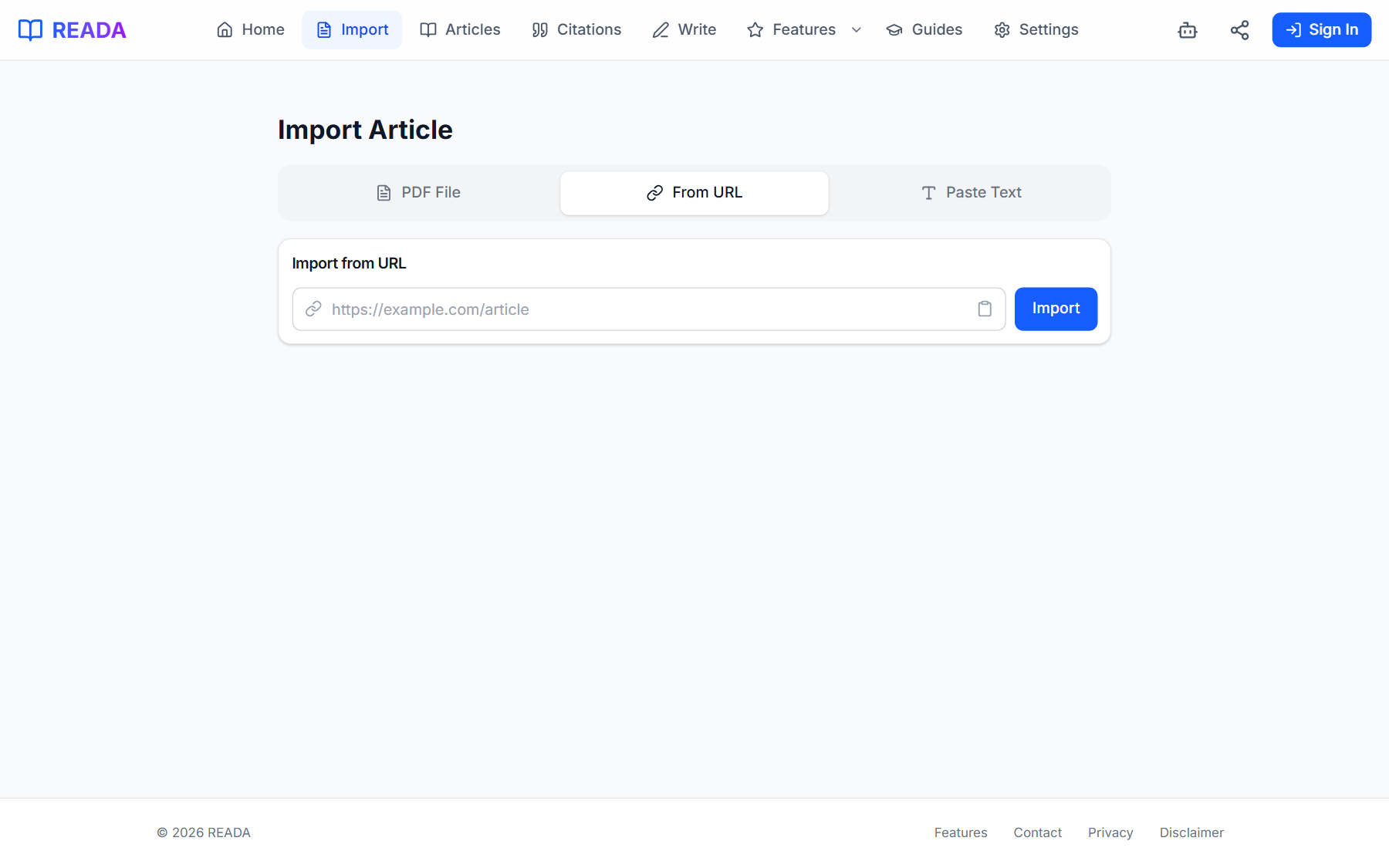
Choose Upload PDF to drag a file in, From URL to paste a link, or Paste Text for raw copy-paste.
- 3
Let READA extract the content
Azure Document Intelligence cleans the body and strips ads, menus, and boilerplate. OCR kicks in automatically for scanned PDFs.
- 4
Start reading
The article opens in the Reader and is saved to your library. You can now translate, highlight, and cite it.
Benefits for you
- Three import methods in one place — PDF upload, URL fetch, or paste text.
- Automatic content extraction removes ads, menus, and boilerplate so you only keep the article body.
- Works offline after the first import — your library travels with you.
- Handles scanned PDFs thanks to built-in OCR.
- Preserves the source URL / filename for accurate citations later.
How people use it
- A grad student downloads a journal PDF and imports it before a lecture.
- A researcher pastes a link to an article behind a news paywall (from an open abstract) and extracts the readable portion.
- A student copies text from an e-book sample and pastes it in to read and translate.
Who it's for
- Students who receive reading assignments as PDFs.
- Researchers tracking citations across dozens of online sources.
- Anyone who prefers a single clean reading surface over tab-hopping.
Where it lives in READA
- Top-menu link "Import" opens the importer page.
- The importer has three tabs: Upload PDF, From URL, and Paste Text.
- Once an article is imported, it opens in the Reader and is added to the Articles list.
Frequently asked questions
What PDF sizes are supported?
Most academic PDFs import cleanly. Very large scans (hundreds of pages) may take longer to OCR, but have no hard size limit.
Can I import scanned or image-only PDFs?
Yes. READA runs OCR through Azure Document Intelligence, with Mistral OCR as a fallback, so scanned papers come out as searchable, selectable text.
Will URL import work behind a paywall?
It extracts whatever the URL returns without logging you in. For open abstracts, open-access articles, and publicly shared pages it works well. Paywalled full text is not bypassed.
Is my library available offline?
Yes. Imported articles are stored locally in your browser, so you can reopen and read them without a connection after the first import.
Is the original source link preserved?
Yes. Every imported article keeps its source URL or original filename so citations stay traceable.
Related links
Ready to try it?
Jump straight into READA and put PDF & URL Import to work on your next article.