Export Citations in APA, MLA, Chicago, Harvard, or Vancouver
Download any folder of citations, or your entire library, formatted for five major academic styles — APA, MLA, Chicago, Harvard, or Vancouver — ready to paste into your paper.
Once your citations live in READA, turning them into a properly formatted reference list takes exactly one click. Choose the style your course or journal requires — APA, MLA, Chicago, Harvard, or Vancouver — and READA formats every entry correctly, including the italics, punctuation, and hanging indents each style demands.
You can export all your citations, a single folder, or a selection. Each export is a plain text file ready to paste into Word, Google Docs, LaTeX, or wherever your paper lives.
Every exported entry includes both the quoted text and the full source reference, so you can trace any quote back to its origin.
How it works
- 1
Open your citation library
Navigate to Citations from the top menu.
- 2
Pick a scope
Export everything, a single folder, or a hand-picked selection.
- 3
Click Export
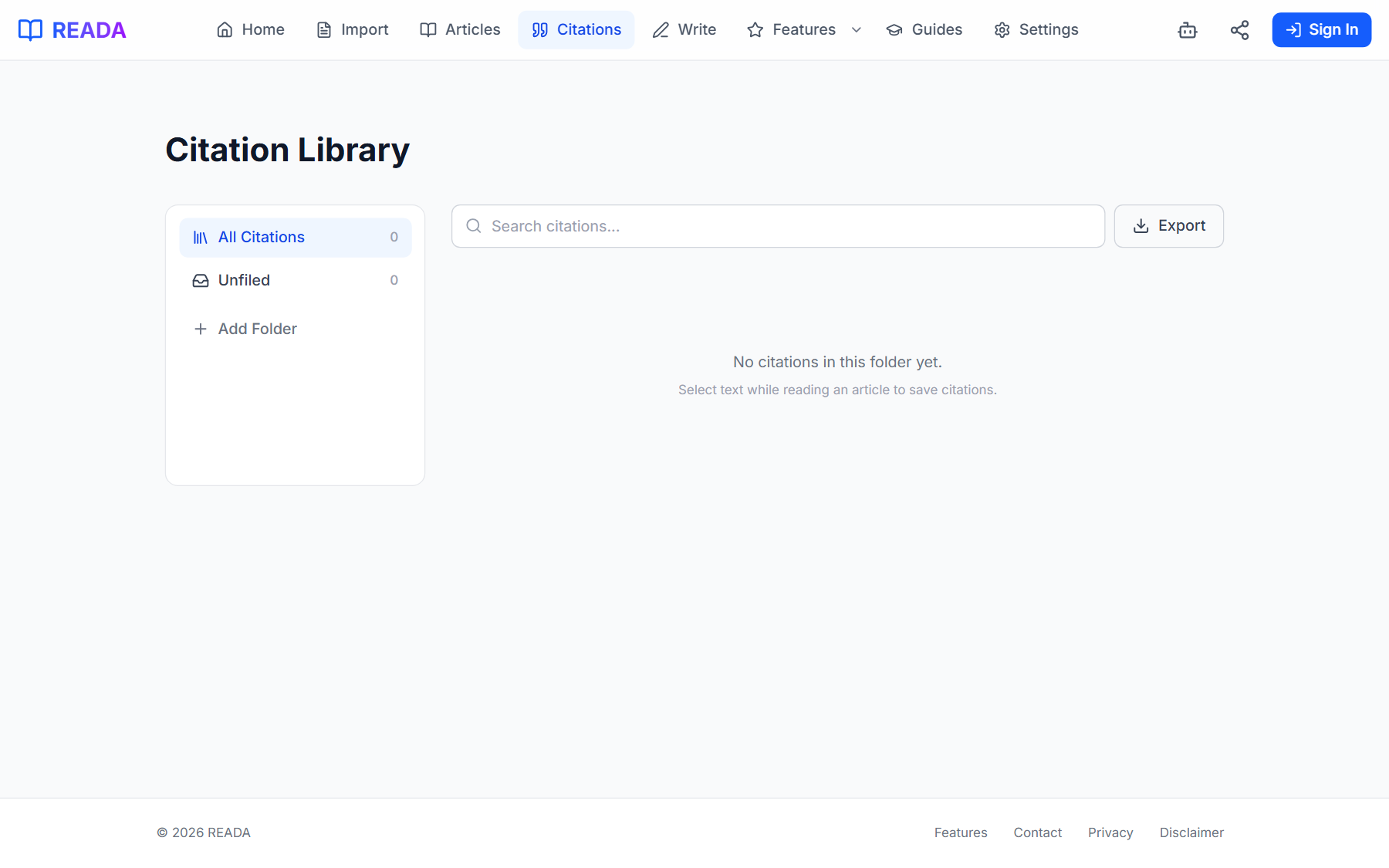
The export button lives in the library toolbar.
- 4
Choose a style
Select APA, MLA, Chicago, Harvard, or Vancouver from the dialog.
- 5
Paste into your paper
The output is plain text formatted for the chosen style — drop it into Word, Google Docs, LaTeX, or anywhere else.
Benefits for you
- Five academic styles: APA, MLA, Chicago, Harvard, Vancouver.
- Export all, by folder, or by selection.
- Plain-text output works in every word processor.
- Each entry includes both the quote and the full reference.
- Switch styles at export time without re-typing anything.
How people use it
- Submitting a paper in APA and then re-submitting to a Chicago-style journal — same citations, one click each.
- A student exports the ten citations in their "Essay Draft" folder straight into the bibliography section.
- A researcher archives every quote from a retired project as a single text file.
Who it's for
- Students writing essays, theses, or dissertations.
- Researchers submitting to multiple journals.
- Anyone who dreads manually formatting bibliographies.
Where it lives in READA
- In the Citation Library, look for the Export button in the toolbar.
- The export dialog lets you choose style and scope.
Frequently asked questions
Which citation styles are supported?
APA, MLA, Chicago, Harvard, and Vancouver.
Can I switch styles after export?
Yes — re-export the same selection in a different style whenever you need to. Your saved citations stay untouched.
Is the output editable?
Yes. The output is plain text, so you can tweak any entry by hand before pasting.
What about non-English sources?
Non-English titles and author names are preserved as-is in whichever style you pick.
Does each entry include the quoted text?
Yes. Exports bundle both the quote and the properly formatted reference so nothing gets lost.
Related links
Ready to try it?
Jump straight into READA and put Export Citations to work on your next article.