Extract Citations from Articles
Learn how to highlight passages in any academic article and turn them into properly formatted citations — ready to drop into your next paper.
Every research paper starts the same way: you read a stack of articles, highlight the important passages, and then spend just as long reformatting those highlights into proper citations. READA collapses that entire workflow into a few taps — highlight a passage while you read, and the citation is created automatically with the source metadata already attached.
What is a citation, and why does formatting matter?
A citation is a reference to a specific passage in a source that supports a claim in your own writing. Different academic disciplines require different formatting — APA for psychology and social sciences, MLA for humanities, Chicago for history, Harvard in the UK and Australia, and Vancouver for medical and scientific journals. Getting the format wrong can cost marks on an assignment or delay a journal submission.
Step 1 — Import the article
Start by bringing the article into READA. You can upload a PDF from your computer, paste a URL to an online article, or drop in plain text. READA extracts the clean body text, strips ads and navigation, and stores the article in your library with its source metadata (title, authors, publication date, journal name, DOI).
For journal articles behind a paywall, download the PDF from your university library portal first, then upload it to READA.
Step 2 — Read and highlight
Open the article in the Reader. Select any passage you want to cite — a sentence, a paragraph, or even a single key phrase. A toolbar appears above the selection with a "Save Quote" button. Tap it, and the highlighted text is saved to your Citation Library along with the exact page or paragraph reference.
- Short quotes (under 40 words) are saved as inline citations.
- Long quotes (40+ words) are automatically flagged as block quotes.
- You can organize quotes into folders — one per essay, chapter, or research theme.
Step 3 — Review your Citation Library
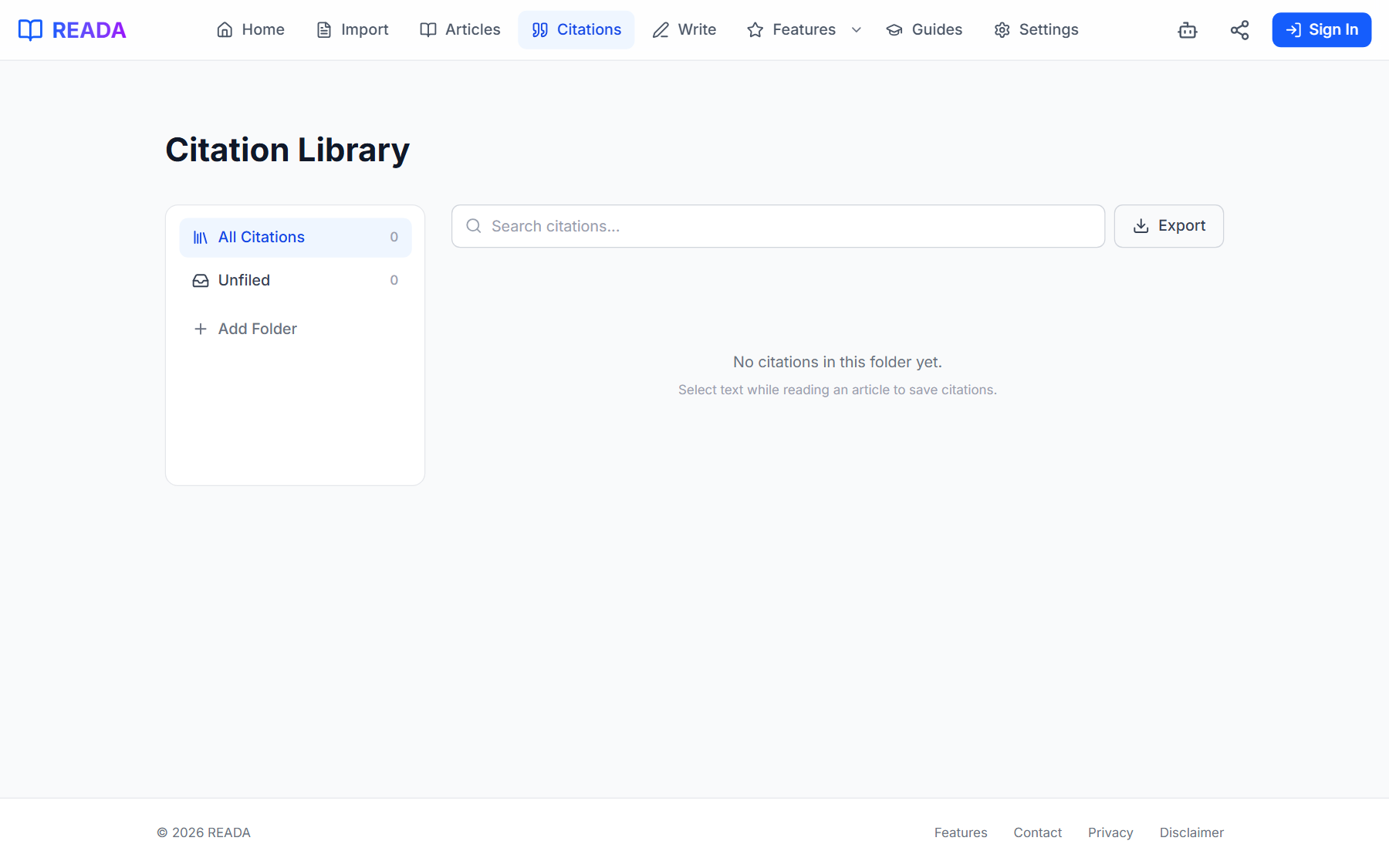
Navigate to the Citations page to see every quote you have saved across all articles. Each entry shows the highlighted text, the source article title, and the page or paragraph number. You can edit the quote text if you only need part of the passage, add personal notes, or move quotes between folders.
Step 4 — Export in any format
When you are ready to use a citation in your paper, READA generates the formatted reference for you. Choose your citation style — APA 7th edition, MLA 9th edition, Chicago (notes-bibliography or author-date), Harvard, or Vancouver — and READA produces both the in-text citation and the full reference-list entry. Copy either one to your clipboard with a single click.
- In-text citation: (Smith, 2024, p. 42)
- Reference list entry: Smith, J. A. (2024). Article title. Journal Name, 12(3), 38–51. https://doi.org/10.xxxx
- You can export all citations from a folder at once as a formatted reference list.
Step 5 — Insert citations into your paper
If you are writing your paper inside READA's built-in editor, the process is even smoother. Place your cursor where the citation belongs, tap the "Cite" button in the editor toolbar, and pick the quote you want. READA inserts the in-text citation at the cursor and adds the full reference to the bibliography at the bottom of your document — automatically sorted and deduplicated.
Tips for efficient citation extraction
Here are a few practices that will save you time when working with large reading lists:
- Create one folder per essay or chapter before you start reading — dragging quotes into the right folder as you go is faster than sorting them later.
- Use the dual-pane reader to view the original article and your citation library side by side.
- If an article has no DOI, READA uses the URL or manual metadata you provide. Double-check these before exporting.
- Re-read your highlighted quotes before writing. Often you will find you highlighted more than you need — trimming quotes down to the essential claim makes for tighter academic writing.
Supported citation styles
READA currently supports the five most widely used academic citation formats. Each style is kept up to date with the latest edition of its respective manual:
- APA — 7th edition (American Psychological Association)
- MLA — 9th edition (Modern Language Association)
- Chicago — 17th edition (notes-bibliography and author-date variants)
- Harvard — British Standard
- Vancouver — ICMJE recommendations
From highlights to finished bibliography
The traditional citation workflow — read, copy, switch to a reference manager, paste, format, switch back — is full of friction. READA removes the context switches by keeping reading, highlighting, and citation management in the same tool. The result: you spend less time on formatting and more time on the ideas that matter.
Try it yourself
Import an article, highlight the passages that matter, and export your citations — all in one place.